Devil's Market Controls
PC, mobile, and UI tips for Pasar Setan's cozy grow-cook-sell loop.
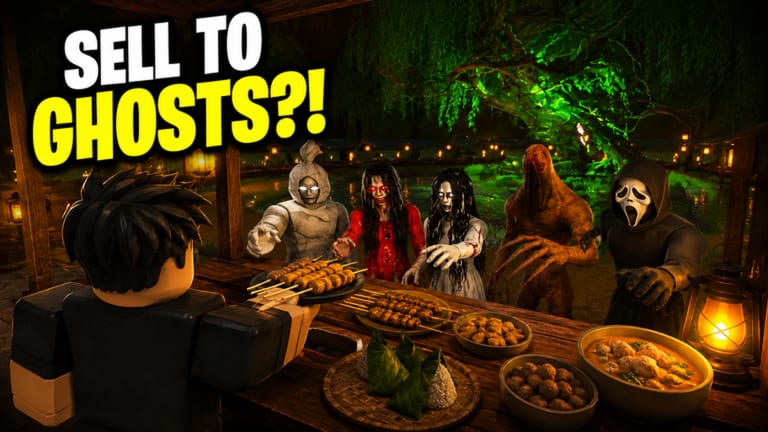
Devil’s Market (Pasar Setan) keeps controls simple on purpose - Project Dukun wants a cozy Roblox sim, not a action-combat keyboard test. Still, knowing where planting, cooking, and stall buttons live saves frustration during your first night shift. This guide lists PC and mobile inputs, explains the top-right menu (including code redemption), and shares quality-of-life habits that make farming and serving ghosts feel smooth.
Brand-new players should pair this page with Getting Started so context matches each button press.
PC controls overview
Roblox defaults apply for movement:
| Action | Default input |
|---|---|
| Move | W A S D or arrow keys |
| Jump | Space |
| Camera | Hold right mouse button + move mouse |
| Zoom | Mouse scroll wheel |
| Interact / use tool | Left mouse click on target or E where prompts appear |
| Open Roblox menu | Esc |
Devil’s Market layers context prompts on crops, cooking stations, stall signs, and NPCs. When your cursor highlights an object, a white interaction key or click icon appears - that is your confirm action for planting seeds, watering, harvesting, serving dishes, and opening the night stall.
Equipping tools and seeds
Your hotbar or inventory tray holds seeds, watering cans, harvested bundles, and cooked plates. On PC:
- Open inventory if seeds are not on the bar
- Click the seed pack or tool to equip
- Click valid soil to plant, or click crops to water/harvest
- Swap to cooked dishes before walking to the stall for night service
Mis-clicks happen near tight farm fences. Zoom in slightly when planting dense jasmine rows described in Farming Ingredients.
Cooking station inputs
At the kitchen prep area, interact with the station to open the recipe UI. Typical flow:
- Click empty ingredient slots
- Select items from inventory popups
- Confirm cook and wait for the progress bar
- Collect finished dish to hotbar
Cancel buttons return ingredients if you picked the wrong mushroom batch - useful before you commit rare grave mushrooms to the wrong recipe. Advanced timing tips sit in the Cooking Guide.
Night stall UI
When night falls, interact with your stall sign to open for business. During shifts:
- Serve prompts appear above customers - click or press interact quickly; queues grow on busy servers
- Stock indicator shows remaining plates - close early if you are empty to avoid unhappy spirits
- Upgrade kiosk (when unlocked) sits near the stall - browse decor and capacity with mouse clicks
Stall management strategy is deeper than buttons alone; read Night Market for pricing and upgrade order.
Top-right menu - codes and settings
The top-right menu icon opens game options, including Codes → Exchange for promo rewards. There are no active codes currently, but the path is always:
Menu (top-right) → Codes → type code → Exchange
See How to Redeem Codes for troubleshooting. The same menu may hold audio sliders - lower music if you prefer calm farming ambience.
Mobile and tablet controls
Roblox mobile uses virtual sticks and touch targets:
| Action | Input |
|---|---|
| Move | Left virtual thumbstick |
| Camera | Drag right side of screen |
| Jump | Jump button (enable in Roblox settings if hidden) |
| Interact | Tap prompt icons above objects |
| Inventory | Tap backpack icon, then tap item to equip |
Mobile tips for Pasar Setan:
- Play landscape for wider stall UI during night shifts
- Pinch-zoom before planting small beds
- Paste promo codes from Discord instead of typing on phone keyboards
- Use a stylus if crow-forage routes require precise tapping near nest nodes
Mobile players complete the full loop daily - farming, cooking, and stall service work without a keyboard.
Camera and accessibility
There are no mandatory precision jumps in Devil’s Market. If motion feels tight:
- Increase Roblox camera sensitivity slightly for faster forage runs
- Toggle shift-lock off for freer angles around your floating island home
- Reduce graphics if frame drops cause missed serve prompts on older phones
Ghost customers are visually distinct but not horror-styled; no flash effects require photosensitivity warnings in normal play.
Co-op and chat
Online servers support Roblox text chat and third-party voice through Discord. Controls do not change in multiplayer - you still manage your own plot. Coordinate verbally when friends visit: “opening stall now” prevents everyone serving from one inventory by mistake.
Common control mistakes
| Mistake | Fix |
|---|---|
| Seeds won’t plant | Stand closer, equip seeds, aim at tilled soil not grass |
| Watering does nothing | Swap to watering can; check bed already saturated |
| Cannot serve customer | Dish not on hotbar - open inventory and equip plate |
| Menu blocks view | Drag UI or rotate camera; close unused Roblox overlays |
| Exchange greyed out | Empty code field or server lag - rejoin and paste again |
Related guides
- Getting Started - first session walkthrough
- Farming Ingredients - crop loops after you master tools
- Night Market - stall shift strategy beyond button presses
Frequently Asked Questions
Quick answers to the most common questions.
Can I rebind keys in Devil's Market?
Devil's Market uses standard Roblox controls. Movement and camera follow Roblox client settings; in-game actions rely on context prompts and clicks.
Is Devil's Market playable on controller?
Roblox supports some controllers on PC and console clients where available. Touch and keyboard remain the most tested inputs for Pasar Setan.
Where is the Codes button on mobile?
Same top-right menu as PC. Tap menu, scroll if needed, open Codes, paste the string, and tap Exchange.
Why do interaction prompts not appear?
You may be out of range, missing the correct tool, or facing a non-interactive prop. Step closer and equip seeds, water can, or finished dishes as needed.